Unfairy Tales Hints and Tips
Need some help with Unfairy Tales? Check out these cheats, hints, tips and walkthroughs. New info is added regularly.
Play Unfairy Tales now! Find more Crazy Monkey Game Hints and Tips.
Check out other games at Crazy Monkey Games;
Unfairy Tales Game Guide
Unfairy Tales features 3 game modes:
-
World Map mode: you can move Alan and his companions in different locations around Dreamland
-
Explore mode: once you reach an explorable location in World Map, the game mode will switch automatically to Explore mode. You will be able to explore the locations, interact with the inhabitants, look around for hidden objects or buy and sell items.
-
Battle mode: every time you meet an enemy on your way, the game mode will automatically switch to Battle mode. Here you will be able to fight using the characters actually in your party. (see Battle)
Unfairy Tales can be played only by mouse.
To move Alan in World Map and Explore mode, keep pressed the left button of your mouse and move the pointer on the screen: Alan will follow it and will stop as soon as you release the button.
Alan will automatically pass from one location to the another as soon as he reaches a passage point.
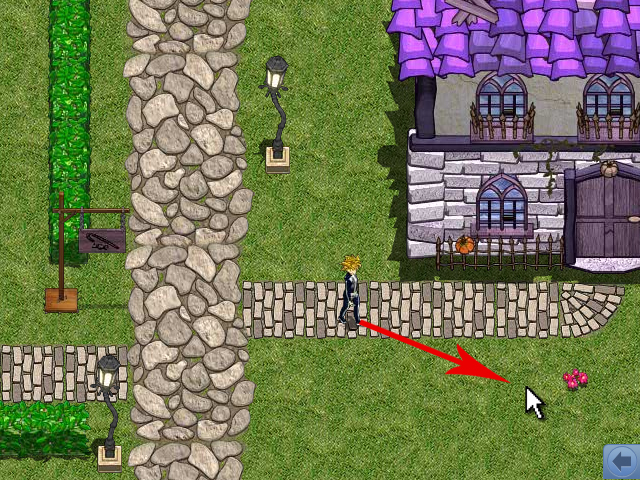
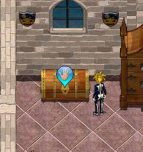
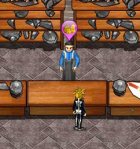
During movements in Explore mode you can interact with some objects and characters. When Alan is near an interactive element, a colored symbol will appear on this object. There are 3 types of interaction:
|
|
objects that can be opened the icon over the object is blue. Left click over the icon to open the object. The items inside the object will be added automatically to your inventory. |
|
|
merchants the icon over the character is violet. Left click to access the buy/sell menu. |
|
|
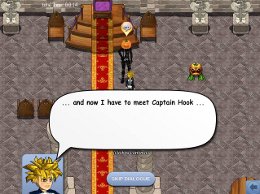
inhabitants the icon over the character is orange. Left click to speak with the character. |

Moving the mouse pointer over the arrow at the bottom right of the screen will open a menu with 3 clickable icons.
Moving the mouse outside the in-game menu, this will shut down.
This menu cannot be accessed in Battle mode.
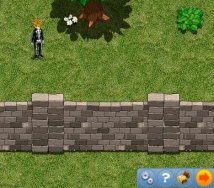
The icon with the chest will open your inventory. Here you will be able to access your items, weapons, spells, and arrange your party members. (→ Inventory)
The icon with the question mark will give you hints about your current quest.
The icon with the gears opens the game menu, where you can save the game, access the options menu, or leave the game.
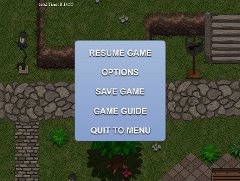
When you click to save a game, you will have at your disposal two game slots. The third slots is reserved to automatic saves, stored when you reach important points in your journey through the Land of Dreams.
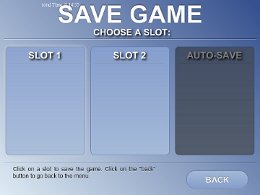
To load a previously saved game, press "load menu" in the main menu and select the desired save slot.


The saved game shows information about your character's level, the date, and the total play time.
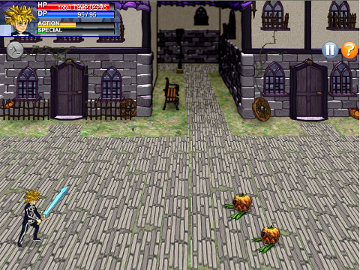
During a fight you can see your party on the left and the opposing enemies on the right.
|
|
Keep pressed to try to escape from the battle. If the icon is gray, it means you cannot escape from tis battle. |
|
|
Pauses the battle and opens the option menu. |
|
|
Shows the ingame battle tutorial. |


For every character in your party, on top of the screen, you can see a file displaying the following information:

-
A picture of the character
-
Current health points (HP, red bar). Once it drops to 0 the character is incapacitated (KO).
-
Current dream points (DP, blue bar). Necessary to cast spells.
-
The action bar (ACTION, yellow bar). The character will be able to perform an action once this bar is charged.
When this bar is charged, the character who is ready to perform an action will start to blink.
The action bar increases as the time passes, accordingly to the speed of your character. You can influence the characters' speed with items and spells.
-
The special bar (SPECIAL, green bar). Once it is charged, the character will be able to perform a special attack as an action. This bar increases when your character performs successful attacks or defenses.
Once a character is ready for action, left click over it to open the action menu. Here you can decide which action assign to the character. When this menu is open the action bars are paused.
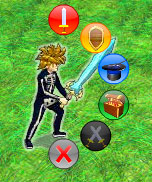
|
Base attack |
|
left click on the icon, then on the enemy target |
|
Defend |
|
left click on the icon to defend until the character is ready for another action |
|
Spells |
|
left click to access the spell list. Select a spell from the list, then left click on the desired target (depending on the spell, the target can be either an enemy or a friend. Be careful!). You can close the spell list clicking on the small "x" in its upper right corner. |
|
Items |
|
left click on the icon to access the item list. Select an item from the list, then left click on the desired target. You can close the item list clicking on the small "x" in its upper right corner. |
|
Special |
|
if the character is ready to use its special attack, left click on the icon and then on an enemy to attack it. The special bar wil be re-set. |
|
Exit |
|
left click on this icon to close the menu and do nothing. The character will still be ready for action. |


Attack Nature and character Status
Attacks can be of ten different types, called "Natures":
-
Normal
-
Fire
-
Ice
-
Thunder
-
Earth
-
Poison
-
Holy
-
Dark
-
Explosion
-
Mind
Each character has an amount of "protection" from each nature, that represents how high is its chance to resist an attack of the given nature.
You will face enemies that are strong against certain natures, but extremely weak against others.
For information about enemies and hints about their natures, see the → Bestiary.
A "Status" is a state that a character can enter. This can happen as a result from an attack, from the use of an item or from a spell.
Many status are negative and inflict some kind of malus to the character, but others are positive and can help the character.
-
Asleep : the character sleeps and cannot perform actions
-
Stone: the character is made of stone and cannot perform actions or be attacked. A character in Stone is considered in KO.
-
Dark: the character is blinded and suffers a malus to its ability to perform attacks.
-
Poison: the character is poisoned and periodically loses HP
-
Slow: the character's action bar is slowed down
-
Fury: the character can perform only physical attacks with a damage bonus from 30% to 60%. All received damage gets a +20%
-
Chaos: the character can't be controlled and will act randomly
-
Frozen: the character can't be used and is more vulnerable to enemies' attacks and could break into pieces when hit.
-
Burn: the character is on fire and periodically loses HP
-
Empty Mind: the character cannot cast spells
-
Adrenalyn: the character's action bars increases in a faster way
-
Regeneration: the character periodically gains HP
-
Shield: the damage suffered from a physical attack is halved
-
Mirror: reflects all the spells directed to the target
-
Invincible: the character is immune to damage and statuses
The slot on the lower left corner near the character's picture will show the statuses active on the party member. The active statuses are also visible over the character's head and some statuses cause the character to change appearance. Once the battle is over, the character statuses will be reset.
Clicking on the chest in the ingame menu will open a window with 5 tabs.
Drag and drop the icon of the item you want to use over the desired target character.
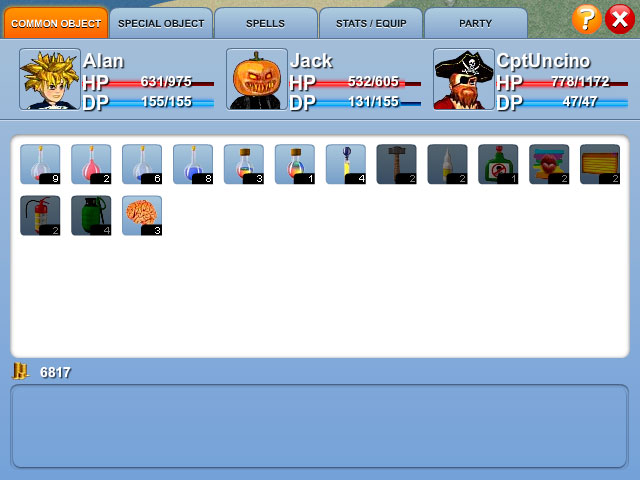
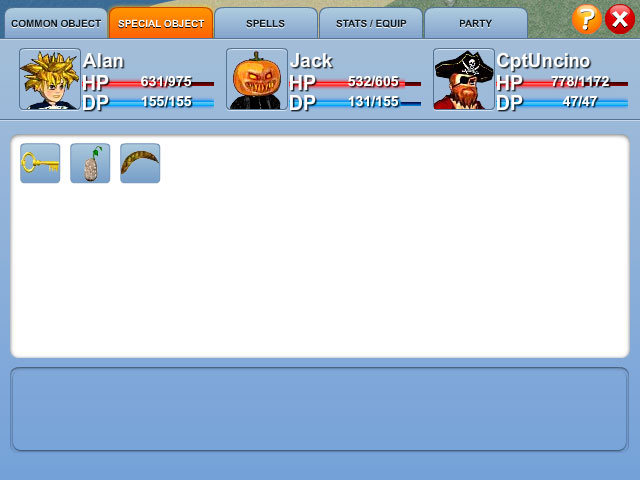
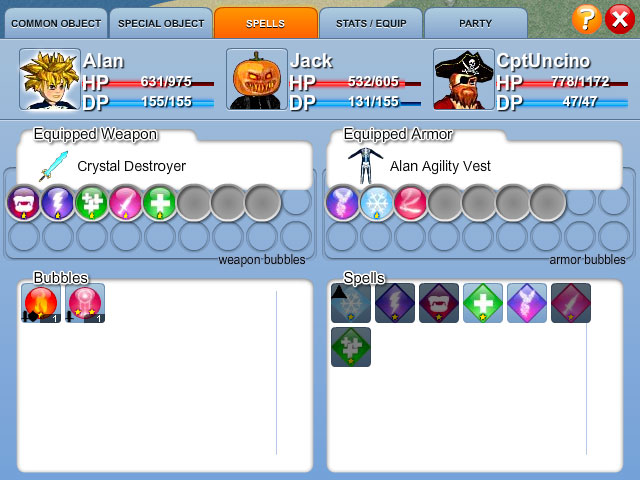
To use a spell drag and drop its icon over the target character.
The icon of a spell that cannot be used outside battle will be disabled.
(for further information about bubbles and spells, consult the → Spell Book)
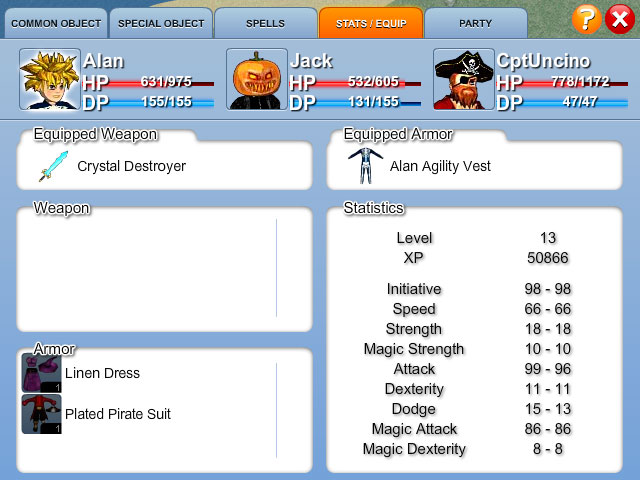
Stats/Equip: here you can see the characteristics of the members of your party, as well as the currently equipped weapon and armor. On the left there's a list of the weapons and armors in your inventory: drag and drop one of them on the desired character to equip it.
Weapons and armors will be disabled if the currently selected character cannot equip them. Click on the picture of a character to see its characteristics and manage its equipment.
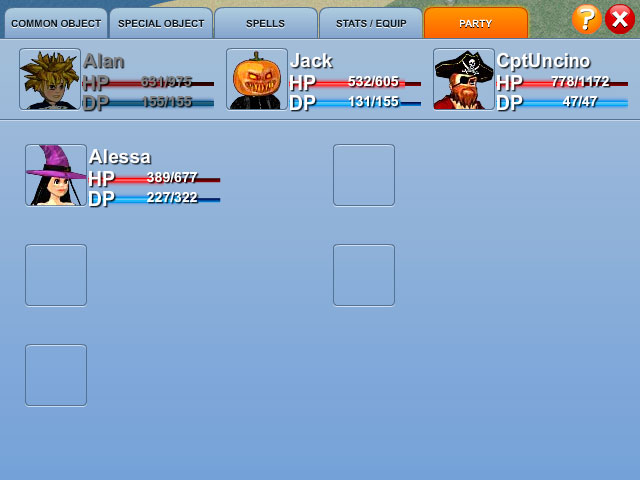
Party: here you can decide which characters will fight at Alan's side. To move a character into the party, drag and drop its icon in a slot near Alan's picture. If the selected slot is occupied, the characters will be swapped.
To remove a character from the party drag and drop it in one of the slots in the lower part of the screen.
Alan can never be removed by the party.
|
|
Click to open the ingame tutorial about the selected inventory tab |
|
|
Click to close the inventory |

Bestiary
Here you can find information and combat hints about the 35 different types of creatures you will face in the game.
|
|
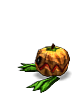
Pumpkin level: 1 - 4 The pumpkin is one of the first enemies you will face in the Land of Dreams. Weak against holy. |
|
|
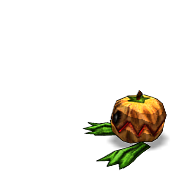
Big Pumpkin level: 5 - 9 A genetically modified pumpkin. It is bigger, stronger and smarter than the simple pumpkin. Weak against holy. |
|
|
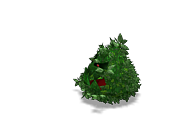
Were Bush level: 2 - 6 The Werebush lives mainly in woody lands around the Halloween Kingdom. It attacks everything living being except plants. Strong against earth attacks, weak against fire. |
|
|
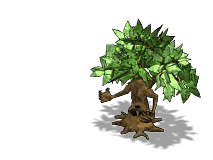
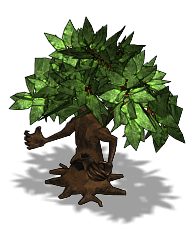
Little Magic Tree level: 2 - 9 Magic trees are an ancient race living in all the woods around the Land of Dreams. Since Geppetto estabilished his reign over Dreamland, Magic Trees have gone mad and attack every creature they meet. Little trees, young and with a small trunk, are strong against earth and weak against fire, ice and explosion. |
|
|
Big Magic Tree level: 10 - 18 These are secular trees, extremely resistant and to damage, have sharp and dangerous claws. They are the sons of earth, but fire, ice and explosion are their weaknesses. |
|
|
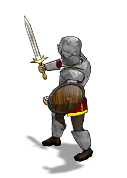
Swordsman level: 3 - 8 Soldier equipped with one-handed sword and wooden shield. It's the light infantry of the powerful army led by the Four Princesses. His iron armor is a fairly good protection against physical damages. It has an ice nature, thus is weak against fire. |
|
|
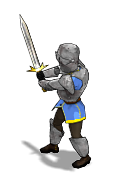
Big Swordsman level: 4 - 8 Sergeants of the enemy army, equipped with a two-handed sword and a heavy steel armor that gives a good protection against physical damages. They absorb thunder damages, but are weak against ice. |
|
|
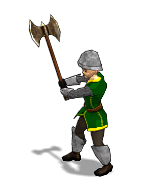
Axe Soldier level: 5 - 11 Elite infantry of the enemy army, these soldiers are equipped with powerful two-handed poisoned axes. Their chainmail armor allows them fast movements and a fairly good defense. Weak against explosion. |
|
|
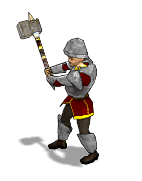
Hammer Soldier level: 6 - 12 Il The most prestigious and powerful troops of the enemy army. Their heavy hammer can cause earthquakes with a smash on the ground. They receive strength from earth and are weak against dark. |
|
|
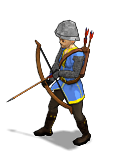
Bowman level: 4 - 10 Standard infantry support equipped with light armor and bow. They can shoot both standard and fire arrows. They can resist fire and are immune against explosion. |
|
|
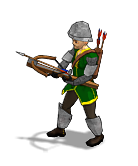
Crossbowman level: 6 - 12 Famous in the entire Sleeping World for their ability, these soldiers often poison their arrows to cause more suffering to their victims, They can resist poison and fire. |
|
|
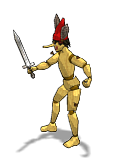
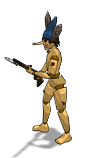
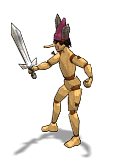
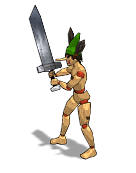
Pinocchio Clone level: 2 - 7 Fanteria Standard infantry of the frightful Geppetto's army. Equipped with a one-handed sword, these soldiers use grenades to support their attacks. Their wooden bodies are weak against fire. |
|
|
Rifleman Pinocchio Clone level: 3 - 9 They usually support clones armed with swords with their long distance attacks. As every Pinocchio clone, they are weak against fire. |
|
|
Pinocchio Commander level: 8 - 12 Equipped with a powerful sword and an improved mechanical brain, they lead the troops of Pinocchio clones. They can throw Cluster Bombs. Weak against fire. |
|
|
Pinocchio General level: 14 - 19 You will rarely see a Pinocchio General on the battlefield. They are said to be so strong to be able to wipe away entire enemy batallions. Their only weakness is fire. |
|
|
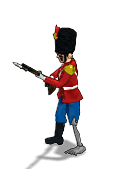
Gunman Steadfast Tin Soldier level: 8 - 13 It's the most common unit in the new army of Geppetto. Gifted by incredible tactical skills and equipped with bayonets, these soldiers are resistent against fire and poison, but weak against thunder. |
|
|
Swordsman Steadfast Tin Soldier level: 9 - 12 Thanks to their strength and swords these soldiers are skilled close combat fighters. They can cast weak spells. They have the same pros and cons of their Gunman companions. |
|
|
Steadfast Tin Commander level: 13 - 18 The commanders are the minds of the troops of this powerful army. Equipped with a rifle, they have an almost perfect aim. Their reinforced endoskeleton provides great resistance against explosion, fire and poison. Weak against thunder. |
|
|
Steadfast Tin General level: 15 - 20 They're the stronger troop ever created by Geppetto. There is no target that can avoid the bullets of their Gatlings. They are equipped with the latest type of armor which makes their defence more effective compared to the Commanders. |
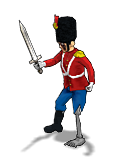
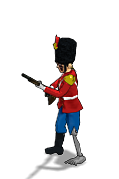
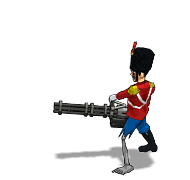
|
|
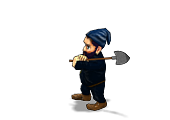
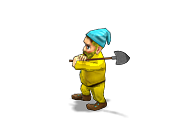
Fire Dwarf level: 10 - 15 A Snow White's servant with powers related to fire. Completely immune to any attack of that nature. Weak against ice. |
|
|
Ice Dwarf level: 10 - 15 A Snow White's servant with powers related to ice. Completely immune to any attack of that nature. Weak against fire. |
|
|
Green Dwarf level: 10 - 15 A Snow White's servant with powers related to poison. Completely immune to any attack of that nature. No relevant weaknesses. |
|
|
Thunder Dwarf level: 10 - 15 A Snow White's servant with powers related to thunder. Completely immune to any attack of that nature. No relevant weaknesses. |
|
|
Earth Dwarf level: 10 - 15 A Snow White's servant with powers related to earth. Completely immune to any attack of that nature. No relevant weaknesses. |
|
|
Dark Dwarf level: 10 - 15 A Snow White's servant with powers related to dark. Completely immune to any attack of that nature. No relevant weaknesses. |
|
|
Holy Dwarf level: 10 - 15 A Snow White's servant with powers related to holy. Completely immune to any attack of that nature. No relevant weaknesses. |
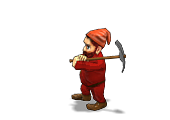
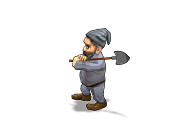
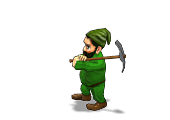
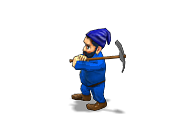
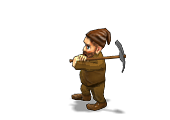
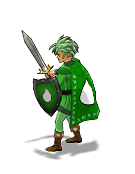
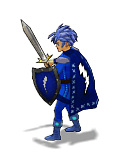
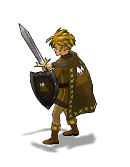
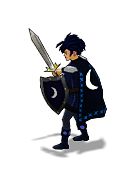
Personal guards of the Four Princesses, they took the place once held by the Beasts as soon as Geppetto rose to power.
|
|
Fire Prince level: 17 - 20 With his incredible powers related to fire, he can perform powerful attacks that can damage an entire army. Weak against ice. |
|
|
Ice Prince level: 17 - 20 With his incredible powers related to ice, he can perform powerful attacks that can damage an entire army. Weak against fire. |
|
|
Poison Prince level: 17 - 20 With his incredible powers related to poison, he can perform powerful attacks that can damage an entire army. No relevant weaknesses. |
|
|
Thunder Prince level: 17 - 20 With his incredible powers related to thunder, he can perform powerful attacks that can damage an entire army. No relevant weaknesses. |
|
|
Earth Prince level: 17 - 20 With his incredible powers related to earth, he can perform powerful attacks that can damage an entire army. No relevant weaknesses. |
|
|
Dark Prince level: 17 - 20 With his incredible powers related to dark, he can perform powerful attacks that can damage an entire army. No relevant weaknesses. |
|
|
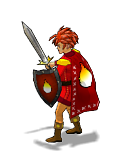
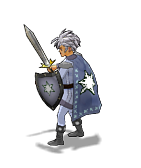
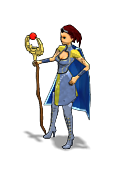
Princess level: 16 - 19 Powerful wizards trained by the Four Princesses. They rarely take part in a battle, usually supporting princes. They can cast a wide range of powerful spells. Strong against any kind of magic attack. |
|
|
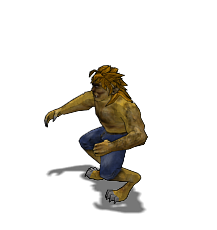
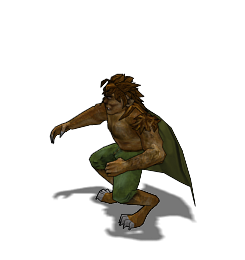
Young Beast level: 15 - 18 A Beast cub. Not as strong as an adult Beast, but already more dangerous in battle than any other creature in the Sleeping World and the Halloween World. |
|
|
Beast level: 15 - 18 Adult Beasts are the strongest and more dangerous warriors on the Sleeping Lands. They say you cannot escape from their fury. Incredibly strong and resistang to any attack, their ability to cast spells make them the final war weapon. |
|
|
He's an incredible fighter, head of the soldiers who guard the Castle of the Four Princesses |

|
|
The Red Apple Tree Hidden in the middle of the Zzz Forest, this powerful creature awaits those that will try to steal its tasty fruits. |
They're hidden in an unreachable castle, they're beautiful, smart and deadly...And if you want to free your friend, you have to defeat them.
|
|
Rapuntzel |
|
|
Snow White |
|
|
The Sleeping Beauty |
|
|
Cinderella |
|
|
??? They say a creature of enormous power is hidden somewhere in the Sleeping World. It is sad to be the most dangerous creature, but no one knows where it can be found, or if it really exists. Like in every good fairy tale, it is also said that it guards an enormous treasure...and the most powerful blade in the world. |
Spell book
Equipping bubbles
Dream bubbles can be equipped in attack or defense slots. The total number of attack slots is given by the sum of your character's attack slots and its equipped weapon's slots. In the same way, the total number of defense slots is given by the sum of your character's defense slots and its equipped armor's slots.
There are bubbles that can be equipped either in attack or in defense, bubbles that can be used only in attack, and bubbles that can be used only in defense.
|
|
This symbol marks a bubble that can be equipped either in or in defense |
|
|
This symbol marks a bubble that can be equipped only in an attack slot |
|
|
This symbol marks a bubble that can be equpped only in a defense slot |


A bubble's level represent its strength and is represented by one, two or three stars inside the bubble. The higher the level, the strongest the spells provided by the bubble.

Some bubbles have a fixed level.
Spells
The only way to obtain spells is to equip Dream bubbles that provide spells to the character. The spells can be normal or counter-effect.
|
|
A counter-effect spell is marked by a triangle |

Normal spells (usually provided when the bubble is equipped in an attack slot) cause an effect over a target, while counter-effect spells (usually provided when the bubble is equipped in a defense slot) are used to remove a "status", caused by a normal spell or by an enchanted weapon or item (poisoned, frozen, stone, fury...)
Some bubbles, in addition to the use of a spell, may provide some sort of protection or immunity when equipped in a defense slot.
Bubble characteristics
A nature protection raises your chances to resist an attack of that nature.
A status immunity raises your chances to avoid entering in a status.
FIRE BUBBLE
|
weapon |
|
armor |
|
Fire Spell: performs a magic attack of Fire Nature. Can cause burning status |
|
Cure Burn Status Spell Fire Protection Burn Immunity |

ICE BUBBLE
|
weapon |
|
armor |
|
Ice Spell: performs a magic attack of Ice Nature. Can cause Frozen status |
|
Cure Frozen Status Spell Ice Protection Frozen Immunity |

THUNDER BUBBLE
|
weapon |
|
armor |
|
Thunder Spell: performs a magic attack of Thunder Nature. |
|
Thunder Protection |

EARTH BUBBLE
|
weapon |
|
armor |
|
Earth Spell: performs a magic attack of Earth Nature. |
|
Earth Protection |

POISON BUBBLE
|
weapon |
|
armor |
|
Poison Spell: performs a magic attack of Poison Nature. Can cause Poisoned status. |
|
Cure Poisoned Status Spell Poison Protection Poisoned Immunity |

HOLY BUBBLE
|
weapon |
|
armor |
|
Holy Spell: performs a magic attack of Holy Nature. |
|
Holy Protection |

DARK BUBBLE
|
weapon |
|
armor |
|
Dark Spell: performs a magic attack of Dark Nature. |
|
Dark Protection |

COMET BUBBLE
|
weapon |
|
armor |
|
Comet Spell: performs a strong magic attack of Fire Nature. Can cause Burning status. Affects all target party memebers. |
|
|

EXPLOSION BUBBLE
|
weapon |
|
armor |
|
Explosion Spell: performs a magic attack of Explosion nature. Affects all party memebers. |
|
|

SLEEP BUBBLE
|
weapon |
|
armor |
|
Sleep Spell: can cause Asleep status. |
|
Cure Asleep Status Spell Asleep Immunity |

CHAOS BUBBLE
|
weapon |
|
armor |
|
Chaos Spell: can cause Chaos status. |
|
Cure Chaos Status Spell Chaos Immunity |

MEDUSA BUBBLE
|
weapon |
|
armor |
|
Medusa Spell: can cause Stone status |
|
Cure Stone Status Spell Stone Immunity |

DARKNESS BUBBLE
|
weapon |
|
armor |
|
Darkness Spell: can cause Darkness status |
|
Cure Darkness Status Spell Darkness Immunity |

EMPTY MIND BUBBLE
|
weapon |
|
armor |
|
Empty Mind Spell: can cause Empty Mind status |
|
Cure Empty Mind Status Spell Empty Mind Immunity: |

VAMPIRE BUBBLE
|
weapon |
|
armor |
|
Vampire Spell: absorbs life from target |
|
|

DREAM EATER BUBBLE
|
weapon |
|
armor |
|
Dream Eater Spell: absorbs dreams from target |
|
|

COUNTER ATTACK BUBBLE
|
weapon |
|
armor |
|
|
|
Gives to the character a 50% chance to perform an immediate counter attack which deals half the normal damage |

SURPRISE BUBBLE
|
weapon |
|
armor |
|
|
|
Increases of 20% the chance to take by surprise your enemies in random encounters |

TURBO BUBBLE
|
weapon |
|
armor |
|
|
|
Increase the growth speed of the action bar |

MULTIPLE ATTACK BUBBLE
|
weapon |
|
armor |
|
|
|
The character has a 50% chance of performing another attack after a successful attack. The extra attack causes half the normal damage. |

MORE ARMOR BUBBLE
|
weapon |
|
armor |
|
|
|
Increase of 30% the armor of the character. |

LIFE BUBBLE
|
weapon |
|
armor |
|
Life Spell: restores health points |
|
Increases the maximum health of the character. |

DREAMS BUBBLE
|
weapon |
|
armor |
|
|
|
Increases the maximum dream points of the character. |

MIRROR BUBBLE
|
weapon |
|
armor |
|
Mirror Spell: can cause Mirror Status |
|
Cure Mirror Status Spell |

FURY BUBBLE
|
weapon |
|
armor |
|
Fury Spell: can cause Fury Status |
|
Cure Fury Status Spell |

ADRENALIN BUBBLE
|
weapon |
|
armor |
|
Adrenalyn Spell: can cause Adrenalyn status |
|
Cure Adrenalin Status Spell |

SHIELD BUBBLE
|
weapon |
|
armor |
|
Shield Spell: can cause Shield status |
|
Broke Burn Status Spell |

REGEN BUBBLE
|
weapon |
|
armor |
|
Regen Spell: can cause Regen status |
|
Stop Regen Status Spell |

SLOW BUBBLE
|
weapon |
|
armor |
|
Slow Spell: can cause Slow status |
|
Stop Slow Status Spell |

CURE BUBBLE
|
weapon |
|
armor |
|
Cure Spell: cures every status alteration |
|
Cure Spell: cures every status alteration |

REBORN BUBBLE
|
weapon |
|
armor |
|
Reborn Spell: revives a KO character |
|
Reborn Spell: revives a KO character |

Secret Maps
You may also want to consult
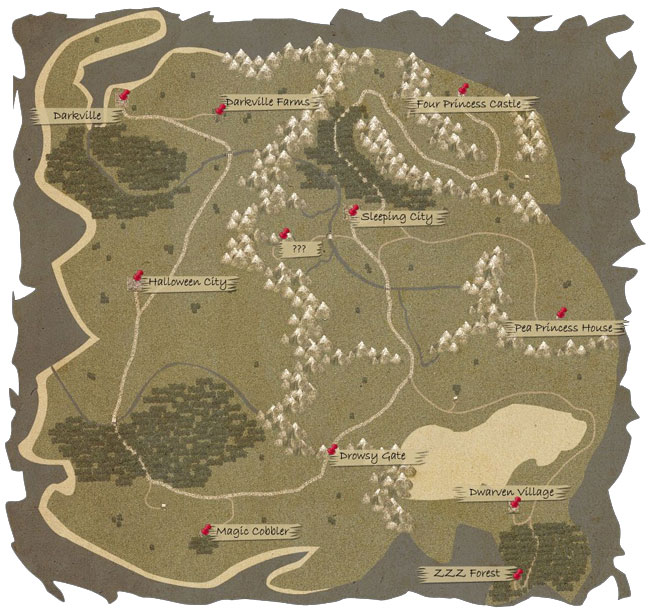
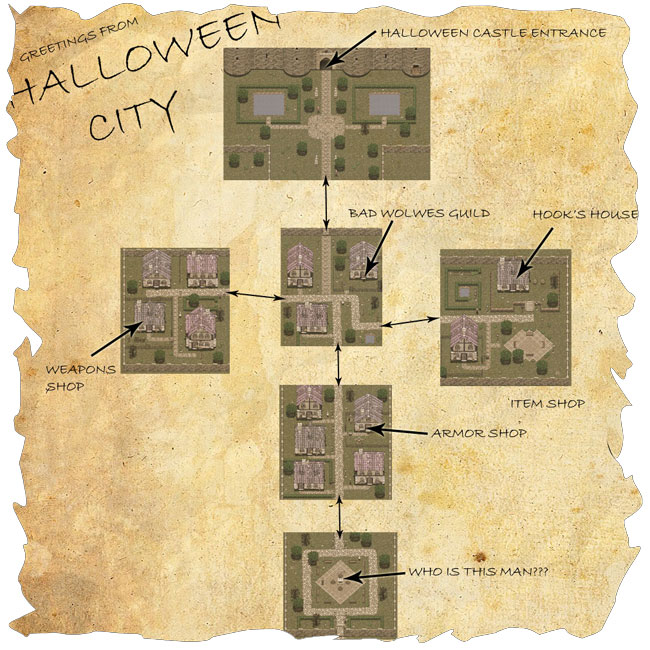
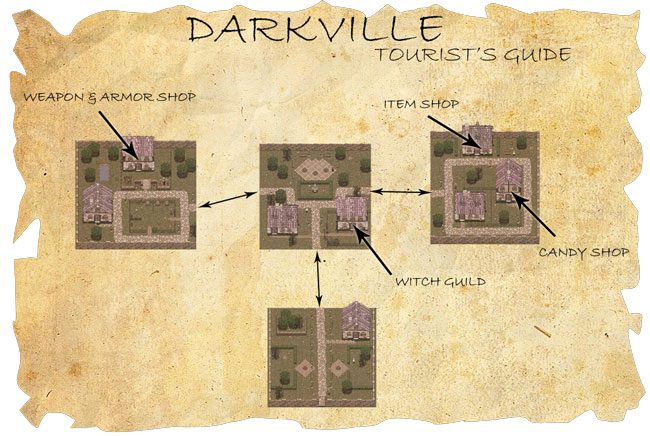
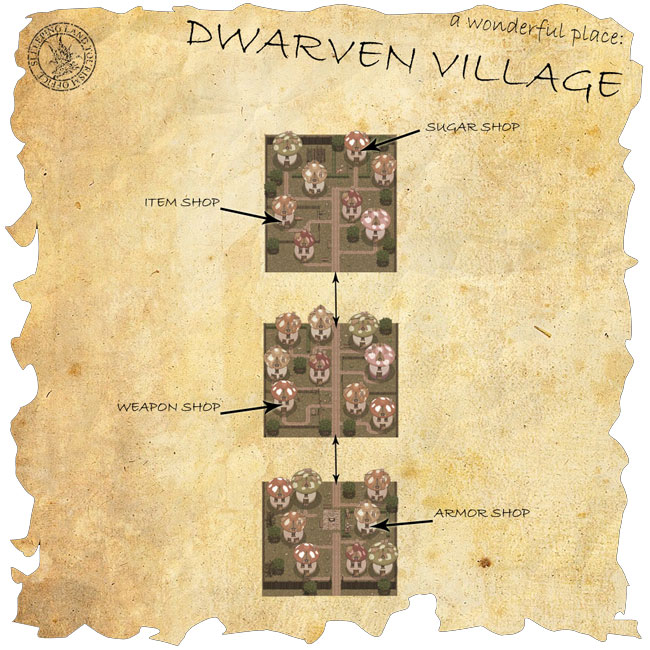
Here are the Secret Maps of Unfairy Tales.
World Map
Halloween City
Darkville
Dwarven Village
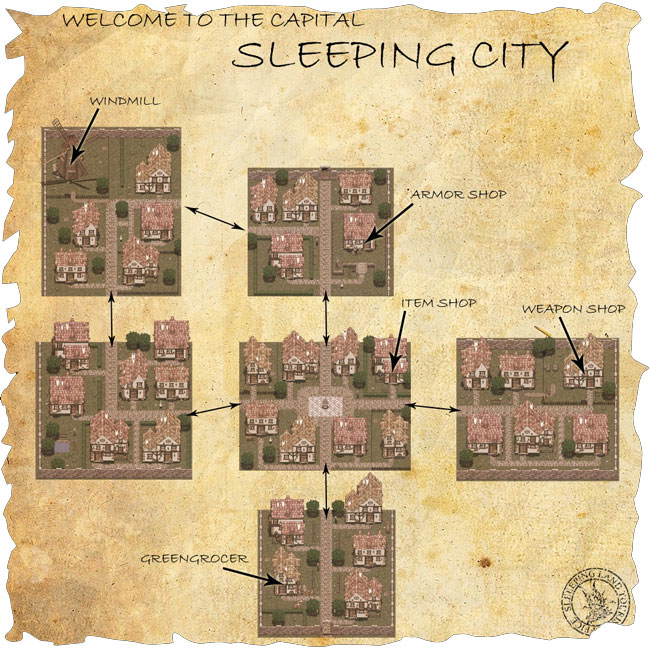
Sleeping City